HelpButton.qs 2.1 — Feedback, Tooltips, Theming, and 9 Languages
HelpButton.qs 2.1 adds a feedback dialog with star ratings, configurable tooltips for any Qlik Sense object, a theming system with built-in presets, and full translation support for 9 languages. Available for both Cloud and client-managed.

When HelpButton.qs 2.0 launched, it brought the help button from a client-managed-only HTML injection to a proper Qlik Sense extension that works on both Cloud and client-managed environments. Custom help menus, context-aware links, and built-in bug reporting — all configurable from the property panel.
Version 2.1.0, released today, adds three significant features: a feedback dialog for collecting user ratings and comments, configurable tooltips that can be attached to any chart or element on a sheet, and a theming system with built-in presets. On top of that, the translation system has been overhauled with full support for 9 languages and an auto-detect mode that picks up the user's Qlik UI language.
All new features work on both Qlik Sense Cloud and client-managed Qlik Sense.
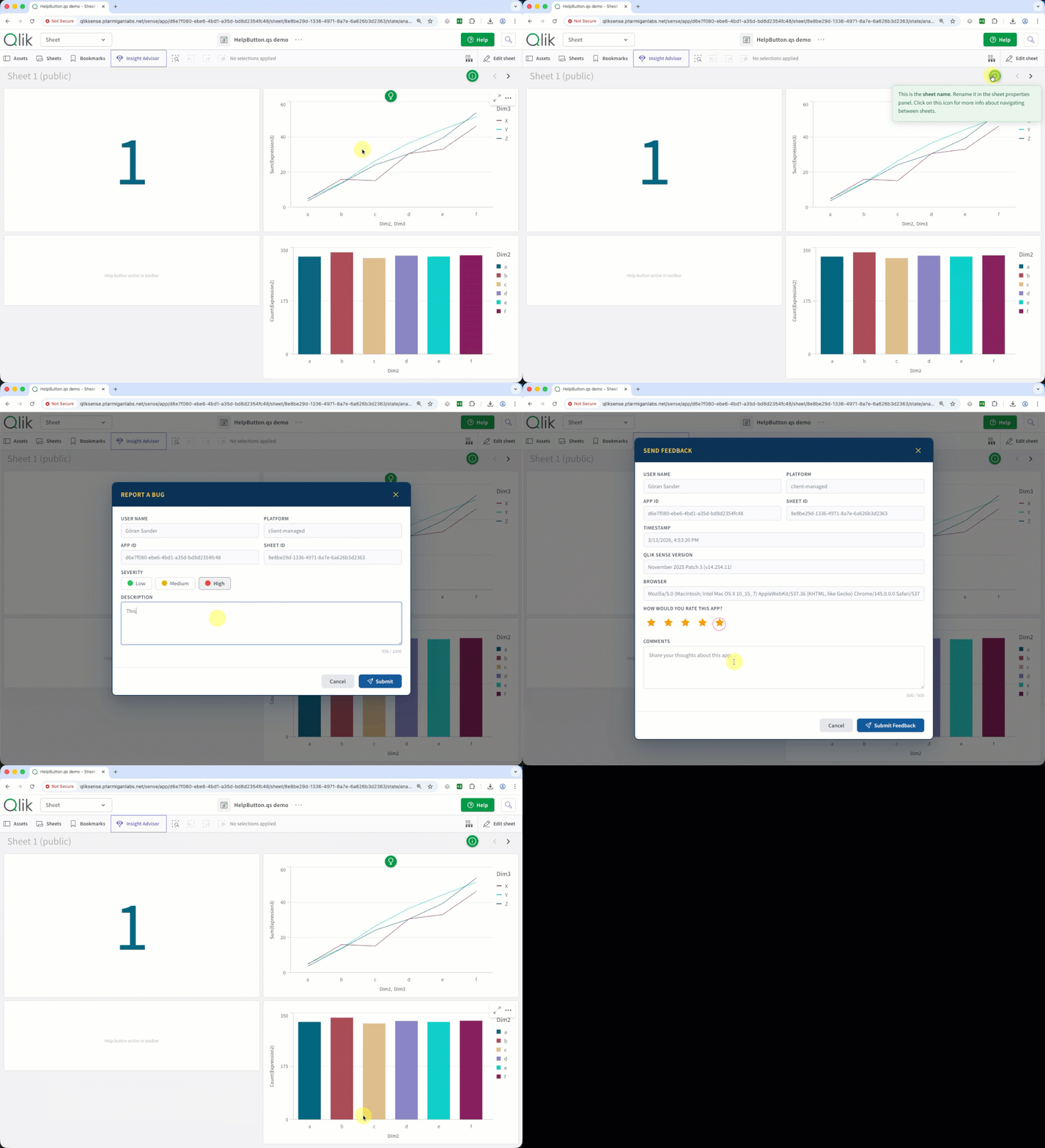
Here's HelpButton.qs 2.1.0 in action — feedback dialog, bug report dialog, opening a web page from the help menu, and tooltips:
Feedback dialog — hear what your users think
How do you know if your Qlik Sense app is actually useful to the people using it? Unless someone takes the time to send you an email (they won't), you're guessing.
HelpButton.qs 2.1.0 adds a feedback menu item type that opens a dialog with a star rating and a comment field. Users rate the app from 1 to 5 stars, optionally add a comment, and hit Submit. The feedback is POSTed as JSON to any webhook endpoint you configure — the same pattern used for bug reports.
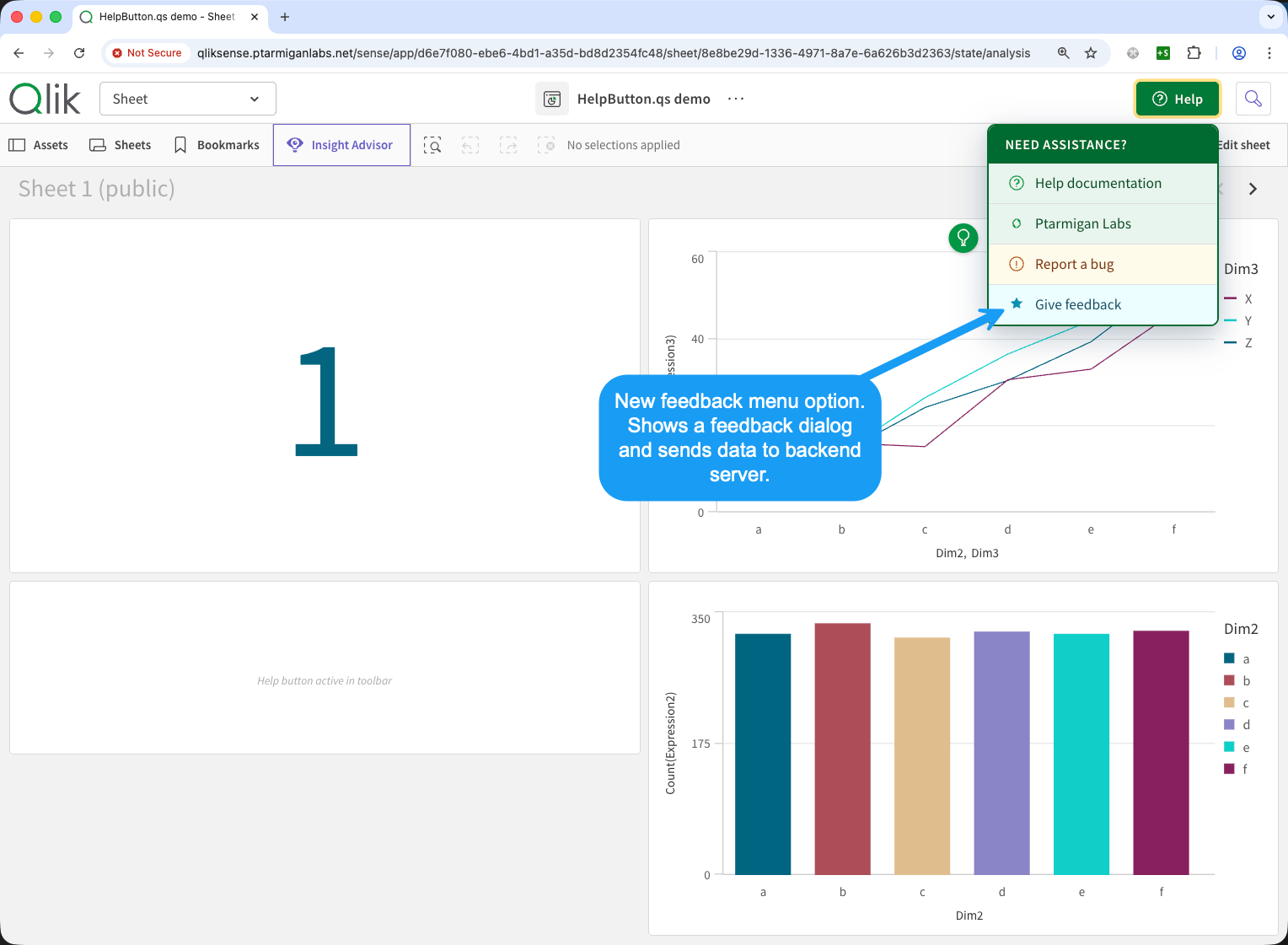
The dialog automatically captures Qlik Sense context alongside the rating: user ID, app ID, sheet ID, platform, and timestamp. You control which context fields are included in the payload and which are shown in the dialog.
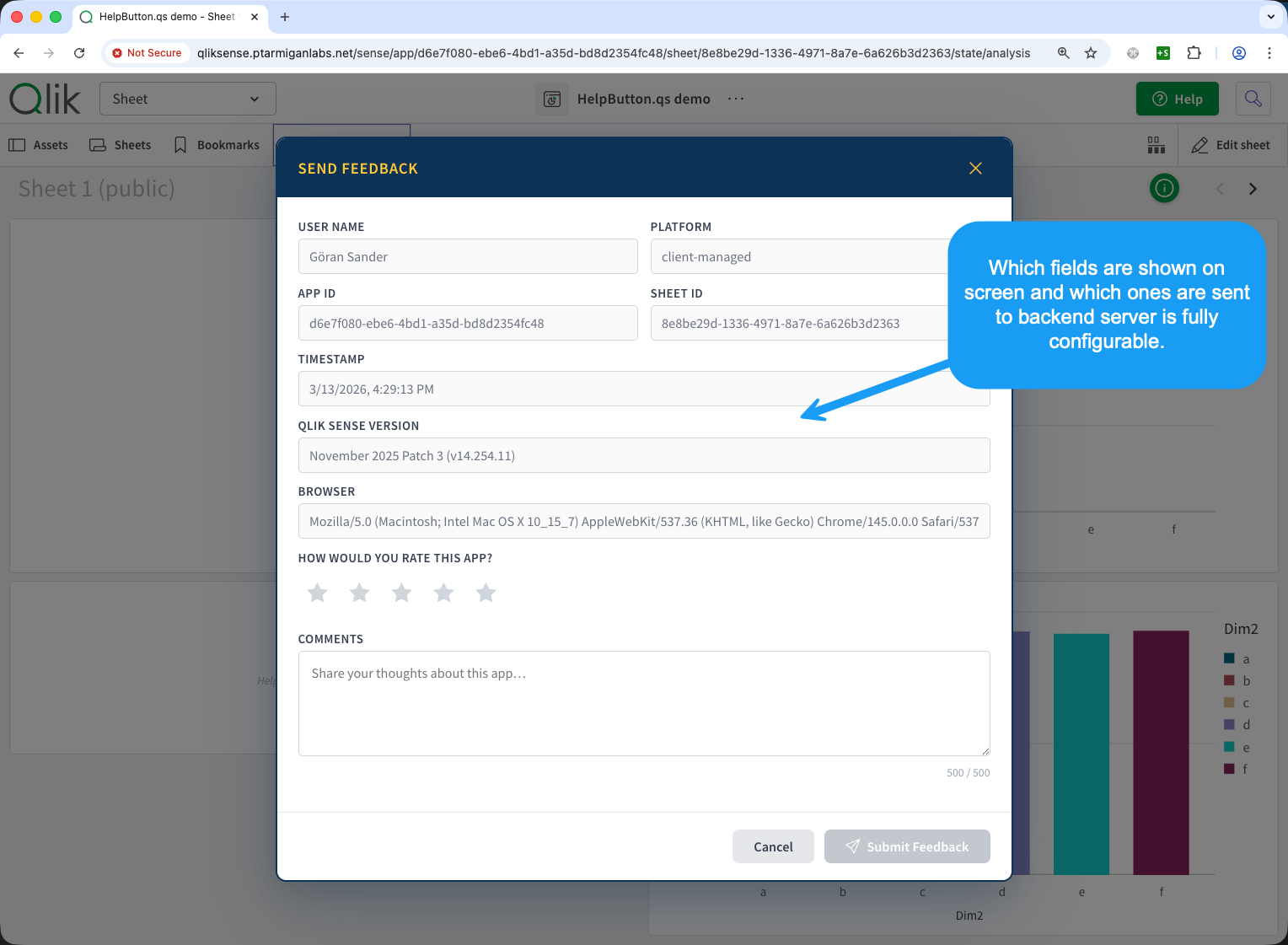
All dialog text — the title, rating label, comment placeholder, button labels, success/error messages — is fully translatable. Set a language or let HelpButton.qs auto-detect it from the user's Qlik UI.
Connect the webhook to your own backend, and you've got structured, context-rich feedback flowing in from your Qlik Sense apps. No external tools, no surveys, no friction.
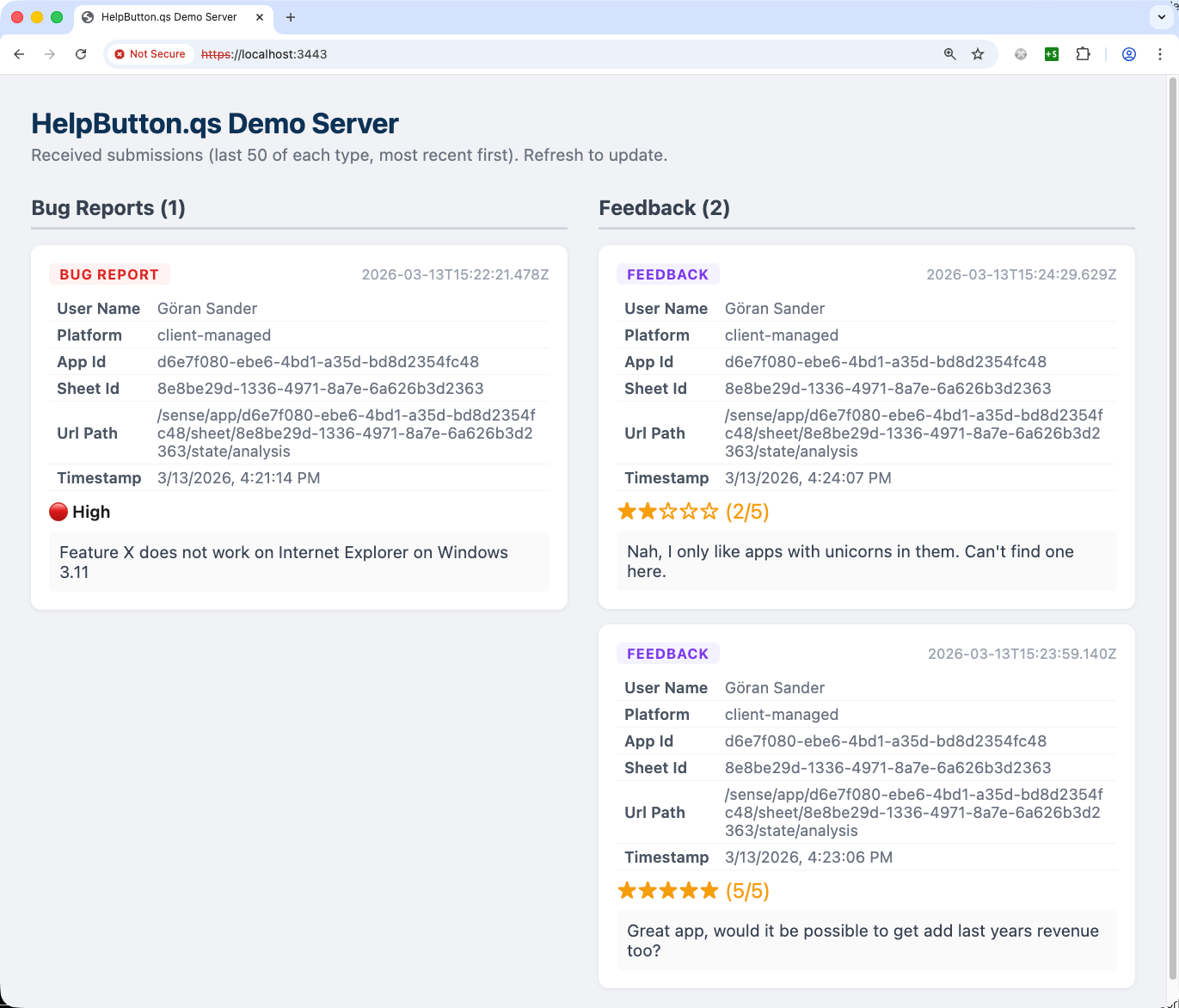
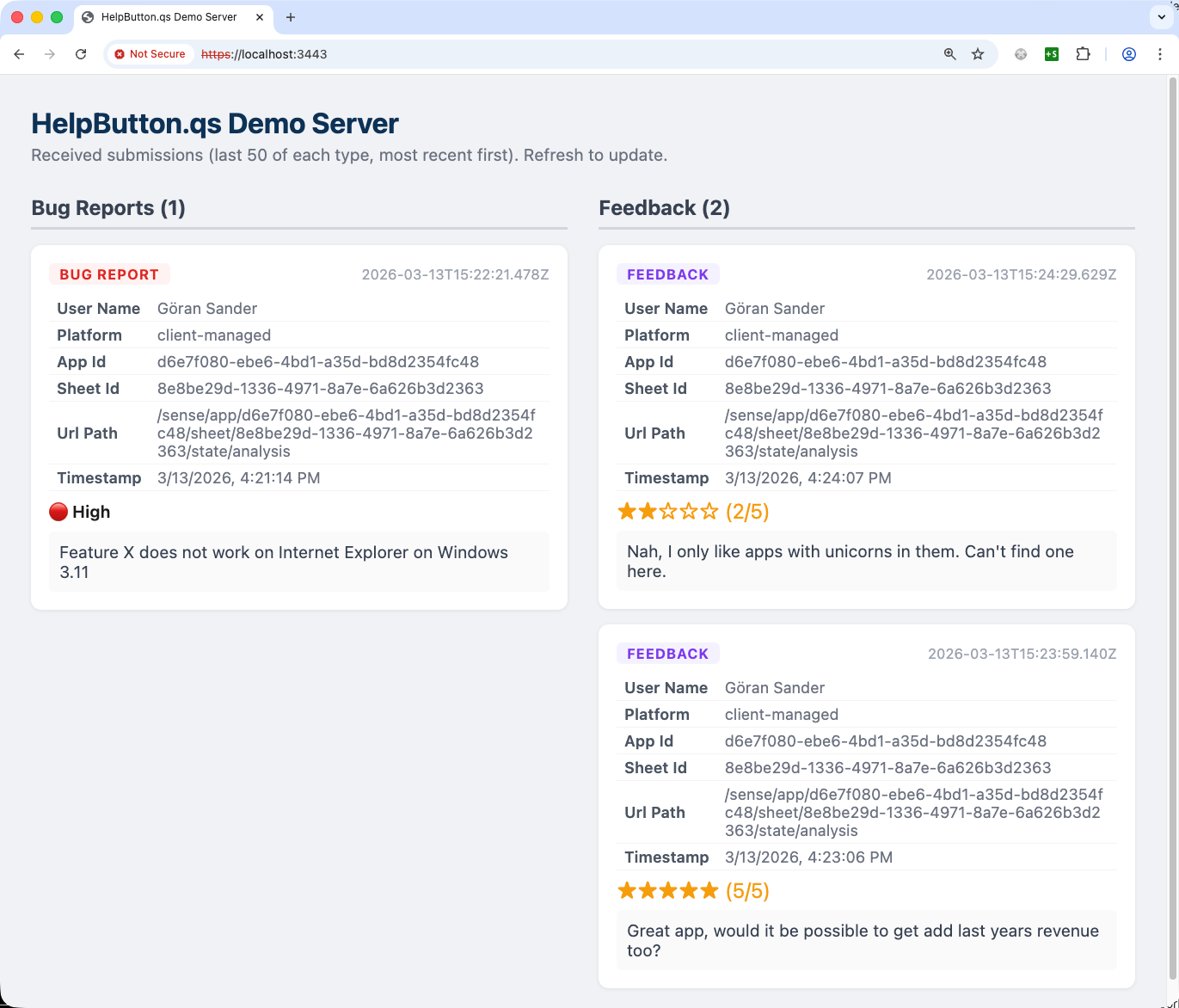
Demo server dashboard
The project includes a Node.js demo server for testing, and it has a built-in dashboard that displays received feedback and bug reports. It's a quick way to verify your webhook integration end-to-end before connecting to production systems.
Tooltips — inline help for any chart or element
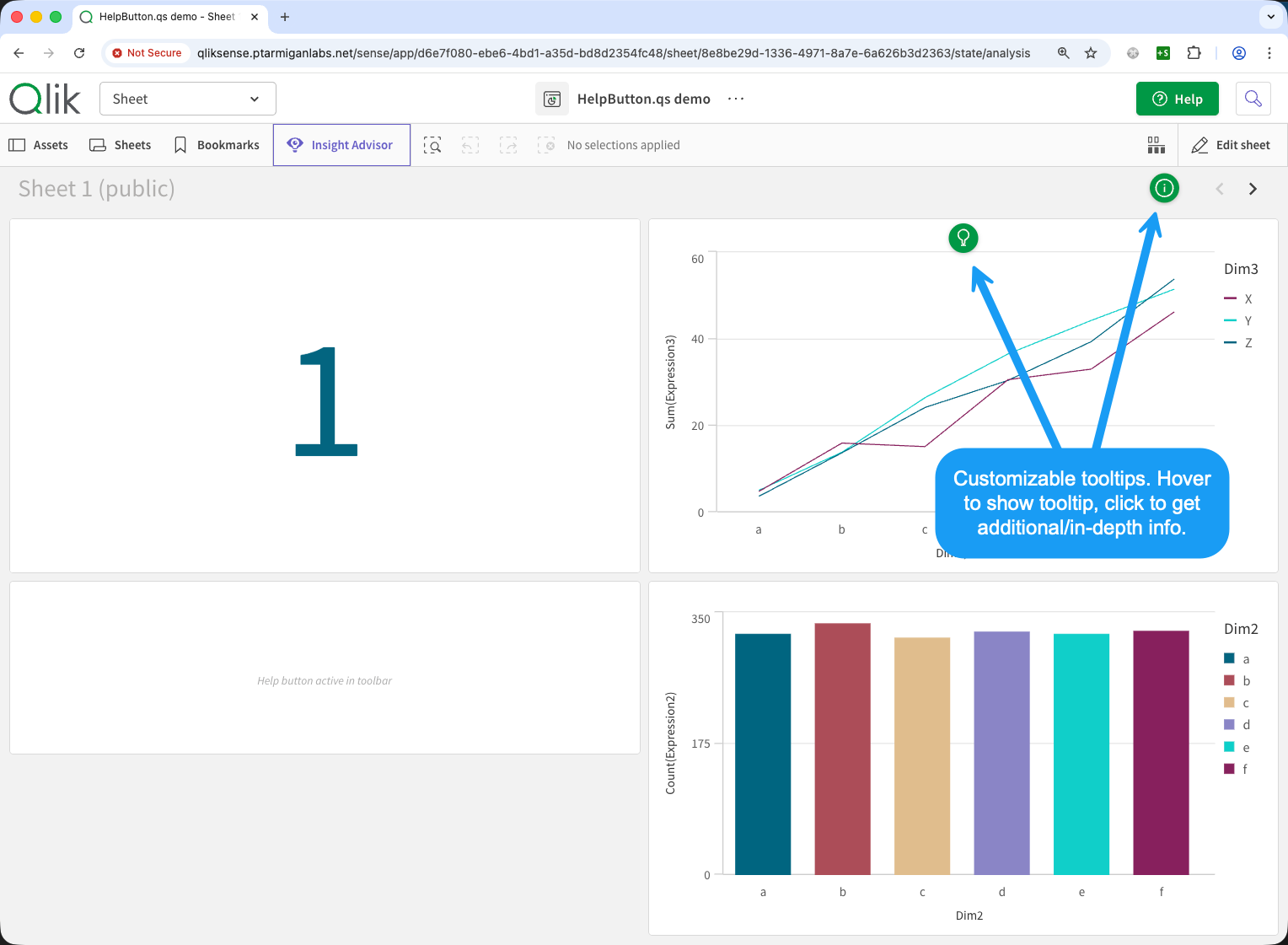
Sometimes a help menu in the toolbar isn't enough. Users need guidance in context — right next to the chart or element they're looking at.
HelpButton.qs 2.1.0 introduces configurable tooltips that can be attached to any Qlik Sense visualization or any element on the page matched by a CSS selector.
Each tooltip has two layers:
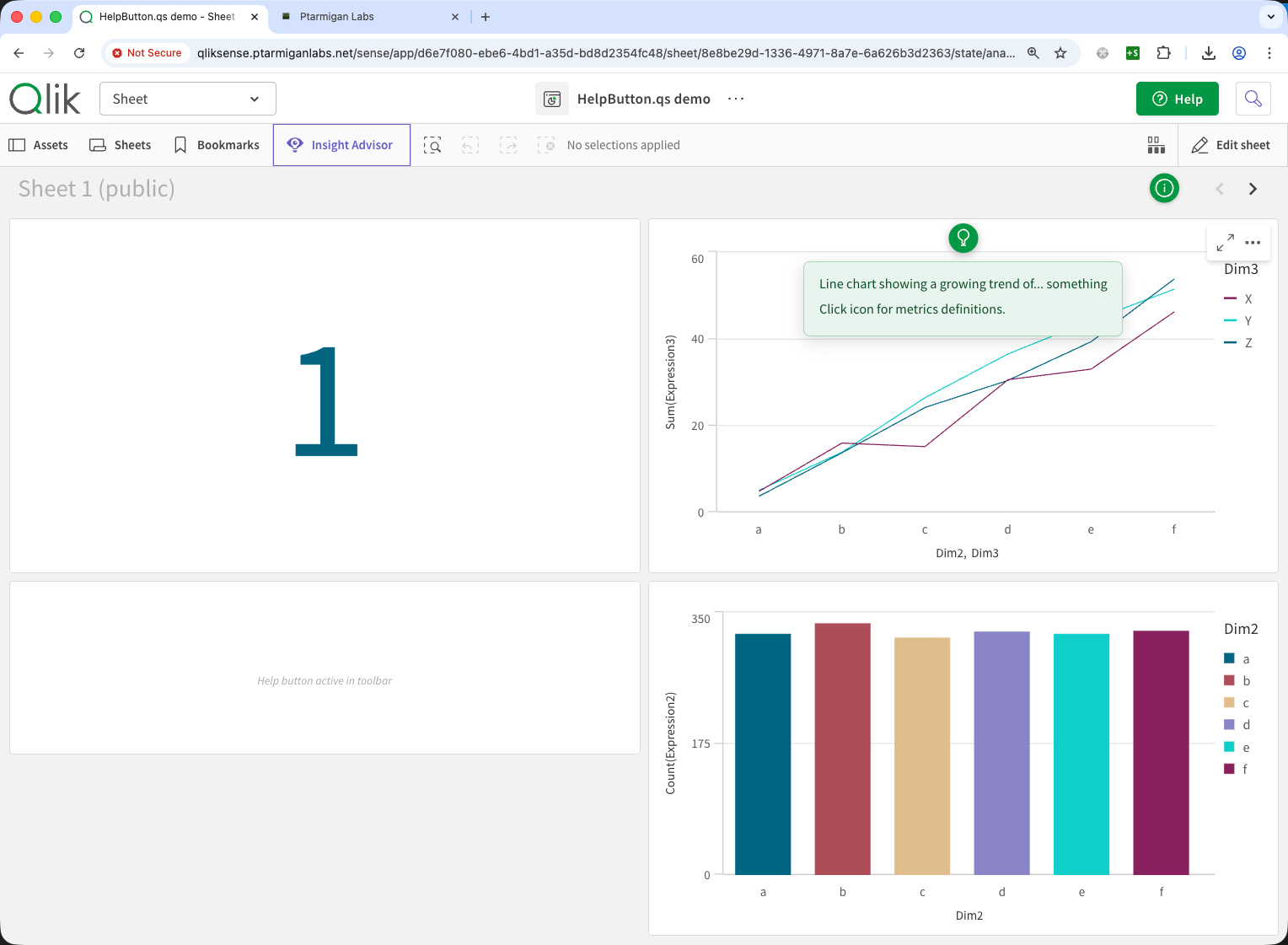
Hover popup
When a user hovers over the tooltip icon, a popup appears with a short explanation. The content supports Markdown — headings, bold/italic, lists, links, and more.
Click dialog
Clicking the tooltip icon opens a full modal dialog with detailed content. This is ideal for longer explanations, step-by-step instructions, or links to external documentation. The dialog also supports full Markdown, with four size options (Small, Medium, Large, X-Large).
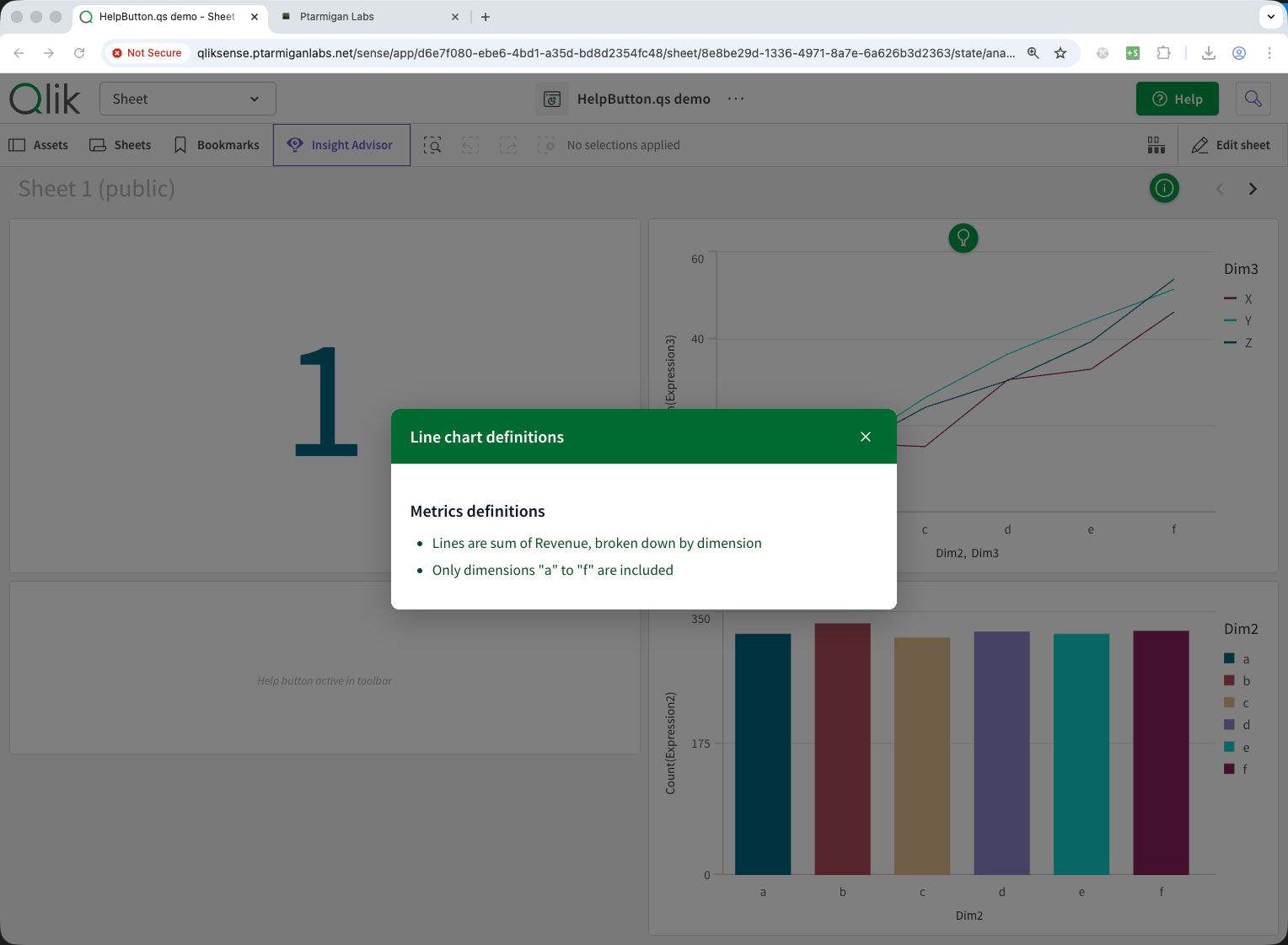
Flexible targeting and appearance
Tooltips can target Qlik Sense objects (selected from a dropdown of all objects on the current sheet) or arbitrary page elements via CSS selectors — useful for adding help to custom elements, headers, or container children.
In short - anything shown in the Sense app can have a tooltip attached to it.
Each tooltip icon is configurable:
- 11 icon types — Help, Bug, Info, Mail, Link, Star, Lightbulb, Bookmark, Eye, Pin, Chart bar
- Size — 1 to 80 pixels
- Position — 8 options: top-left, top-center, top-right, center-left, center-right, bottom-left, bottom-center, bottom-right
- Colors — fully independent icon, hover popup, and dialog colors (9 color settings per tooltip)
Tooltip content fields support Markdown in both the hover popup and the click dialog, so you can include formatted text, links, images, and code snippets right where users need them.
Tooltips are visible in analysis mode only — in edit mode, you configure them via the property panel.
Theming — consistent styling in one click
Configuring colors for menus, dialogs, tooltips, and buttons individually is flexible but time-consuming. The new theming system lets you apply a coordinated color palette across the entire extension with a single selection.
HelpButton.qs ships with 4 built-in presets:
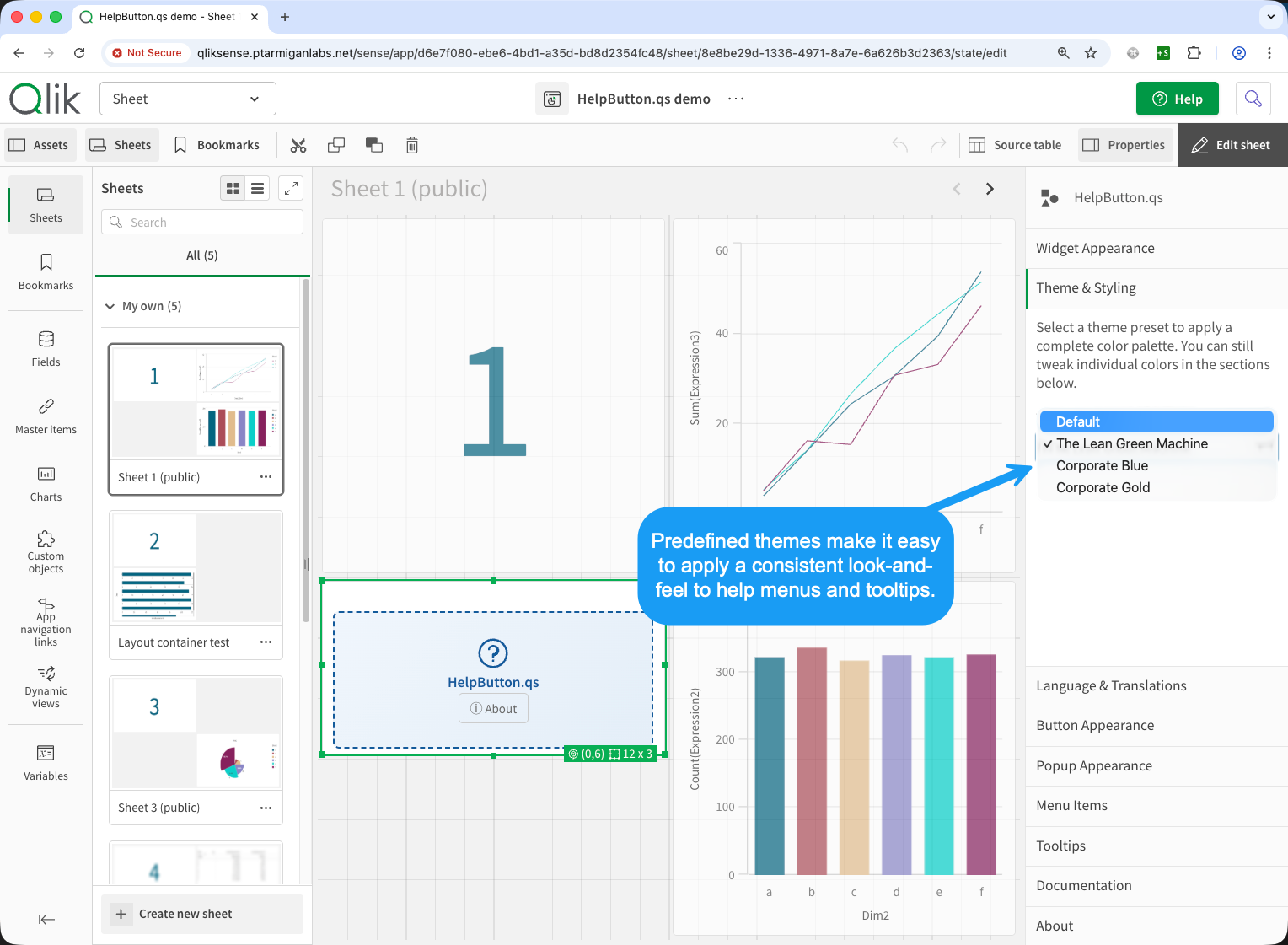
| Preset | Style |
|---|---|
| Default | Grey icon, light hover — clean and neutral |
| Lean Green | Green accents with mint hover backgrounds |
| Corporate Blue | Navy headers with light blue body and gold text |
| Corporate Gold | Gold accents with cream backgrounds and navy headers |
When you apply a theme, all existing and new menu items, tooltips, and dialog colors update to match. You can still override individual colors after applying a theme if you need to fine-tune specific elements.
Themes apply to everything: the toolbar button, the popup menu, bug report and feedback dialogs, and tooltips.
9 languages with auto-detect
HelpButton.qs now fully translates every UI string — toolbar button labels, popup titles, dialog text, button labels, success/error messages — into 9 languages:
| Language | Code |
|---|---|
| English | en |
| Swedish | sv |
| Norwegian | no |
| Danish | da |
| Finnish | fi |
| German | de |
| French | fr |
| Polish | pl |
| Spanish | es |
The language dropdown in the property panel offers two modes:
- Auto-detect (default) — HelpButton.qs reads the user's Qlik Sense UI language and displays the matching translation. Each user sees the extension in their own language.
- Specific language — forces a single language for all users of that app.
The translation resolution chain is: custom value (if set in the property panel) → built-in translation for the active locale → English fallback. This means you can auto-detect the language but override specific text fields where needed — for example, using a custom rating label while keeping everything else auto-translated.
All 23+ translatable strings are editable in a centralized Language & Translations section in the property panel.
Other improvements in 2.1.0
A few more things worth mentioning:
- Bug report severity — the bug report dialog now includes a severity dropdown, so users can indicate how critical an issue is.
- Visible in edit mode — the help button now stays visible in sheet edit mode, making it easier to verify configuration changes.
- Default menu items — new extension placements automatically include a bug report and a feedback menu item as starting points.
- Extension library section — the extension is now listed under its own ".qs Library" section in the sheet editor for better organization.
Getting started
HelpButton.qs 2.1.0 is available now:
Download the extension zip from the release page, import it into Qlik Sense (Cloud or client-managed), drag it onto a sheet, and start configuring. The property panel gives you full control over menu items, feedback settings, tooltips, theming, and translations.
If you're upgrading from 2.0, the extension is a drop-in replacement. Your existing configuration is preserved — the new features (feedback, tooltips, theming, translations) are additive.
As always, HelpButton.qs is open source under the MIT license — free to use, modify, and share.