On this page
If you run client-managed Qlik Sense, also known as Qlik Sense Enterprise on Windows (QSEoW), you have probably had this support ticket. A user opens an app and gets:
"An error occurred. You cannot access Qlik Sense because you have too many sessions active in parallel."
Sometimes the page sits half-drawn for a while first, so the user thinks Sense is slow before the message turns up. By the time the ticket reaches you, the user can often get in again. You can't tell why it happened, and you couldn't have seen it coming. The proxy's list of sessions doesn't help either, as we'll see.
This post is about client-managed Qlik Sense only. Neither the findings nor the dashboard cover Qlik Cloud.
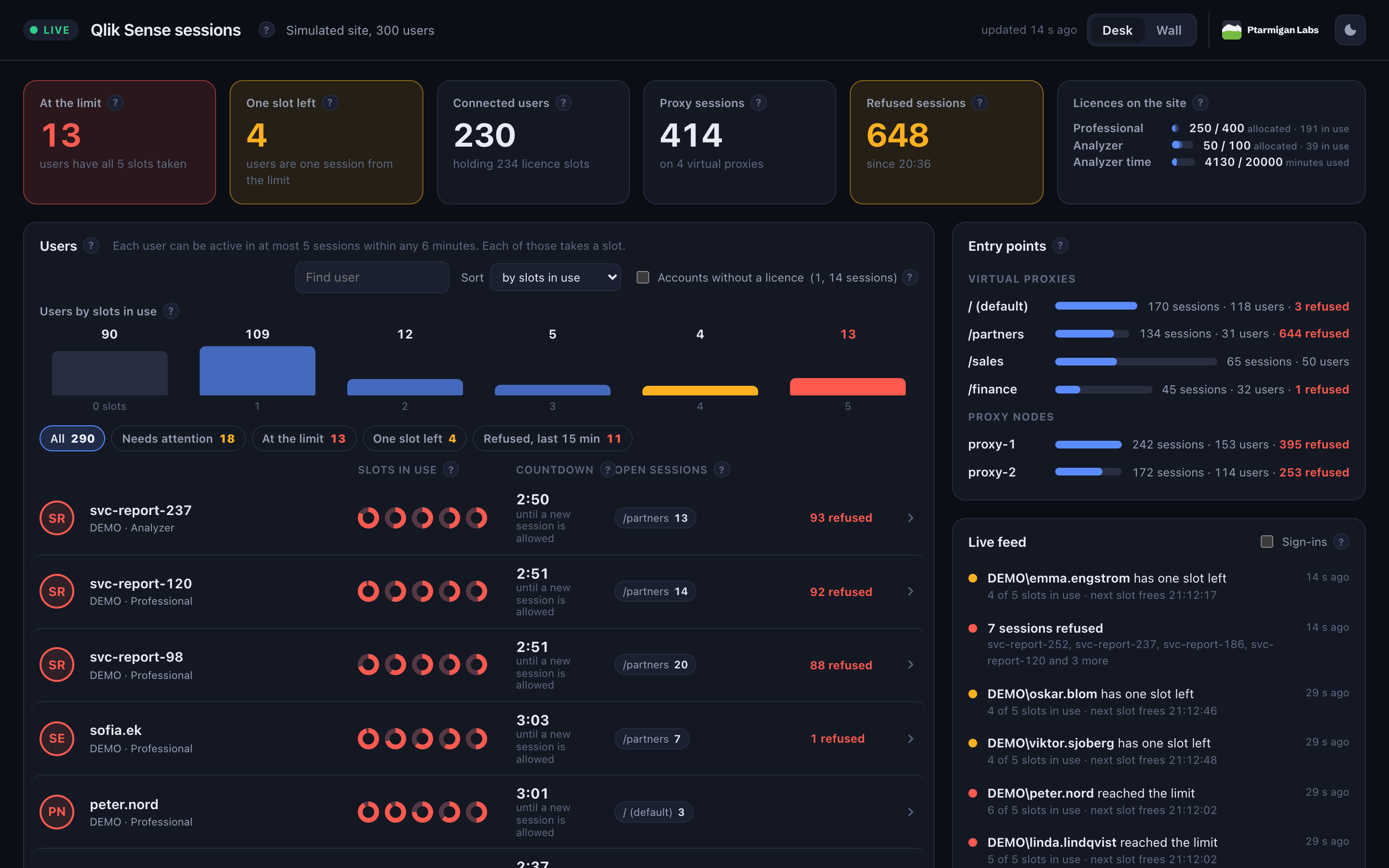
There is now a way to see it coming. Here is the session monitor, a free live dashboard for exactly this:
The session monitor in four minutes: who's about to be locked out, and when they can get back in. Narrated, with captions.
A decade of educated guesses
This isn't a new puzzle. The five-session limit has been in Qlik's help since the early Qlik Sense 2.x releases, about ten years ago. People have been trying to work out how it really behaves for just as long. Ask three Qlik Sense admins and you'll get four answers, one of them with a disclaimer:
- Qlik's help says that five minutes must pass. It has said so since Qlik Sense 2.2, and still does in the May 2025 help.
- A Qlik employee in 2020 said five sessions within six minutes, adding a careful "I believe" (Qlik Community).
- Qlik Support in 2021 said five sessions per five minutes (Qlik Community).
- Qlik Support in 2023 measured six minutes (Qlik Community).
- The Qlik Community came up with ways to list and end sessions: PowerShell scripts, Qlik-Cli for Windows'
Get-QlikSessionandRemove-QlikSession, Ctrl-Q'ssession-getandsession-delete, and Christof Schwarz's sessionTerminator, which ends a user's oldest sessions to make room. As we'll see, ending a session doesn't free a slot any sooner, so that never helped quite as much as everyone hoped.
So session handling in Qlik Sense has long been a black box. Everyone who looked inside came back with a slightly different story, and Qlik's own documentation is no clearer. It still largely is a black box, so I took on the challenge: find out how the limit really works, and build a neat tool to watch it while I was at it. This post covers both.
A word on where this comes from. What follows about how Sense behaves is based on observation. I haven't reverse engineered Qlik Sense. The starting point was what Qlik has published: the help, Qlik Support articles and answers in the Qlik Community. Then came quite a few tests on a lab server, each one trying out a hypothesis about how the limit works, and watching what Sense did. Qlik can change this behaviour in any release, so read it as what was seen on one version, not as a specification.
How the limit really works
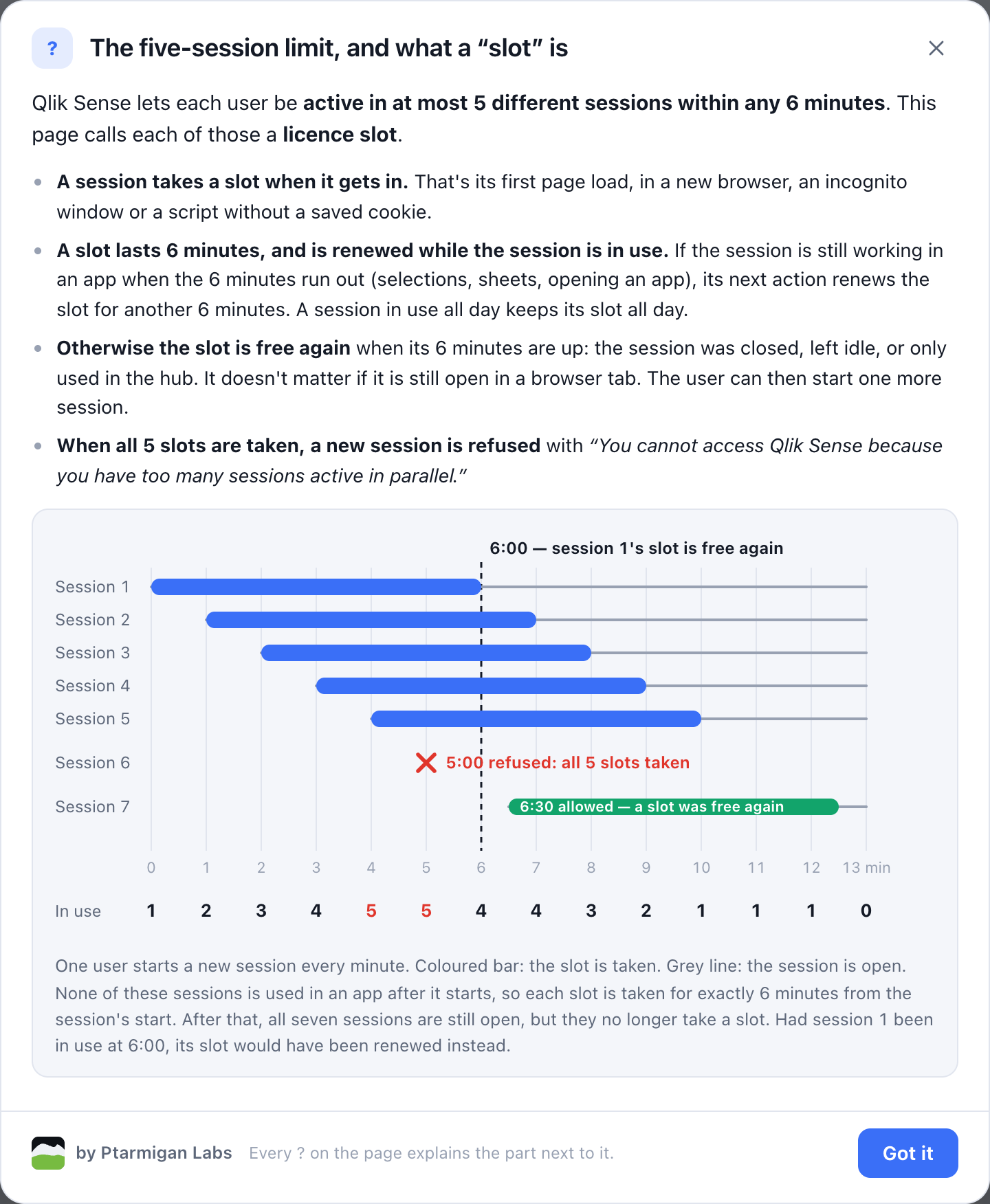
QSEoW lets each user be active in at most five different sessions within any six minutes. I'll call each of those five a slot.
| A session takes a slot when it gets in | Its first page load: a new browser or browser profile, an incognito window, a script without a saved cookie. More tabs in the same browser are the same session. |
| A slot is a six-minute lease | If the session is still in use when the six minutes run out, its next action (a selection, a sheet, opening an app) renews the lease. A session used all day keeps its one slot all day. |
| An idle session lets its slot run out | Six minutes after it was last renewed, the slot is free again, even if the browser tab is still open. Opening another app doesn't renew a lease early. |
| With five slots taken, a new session is refused | Sessions that are already in keep working. |
| Closing things frees nothing | Signing out, closing the browser or ending sessions in the QMC or the API doesn't free a slot any sooner. Only waiting does. |
| It counts across virtual proxies | Four sessions through one virtual proxy and one through another make five. |
Those figures were measured on Qlik Sense May 2026, on 14 November 2026. Qlik's help says five minutes, but six (360–370 seconds, in three runs) is what I measured, and what Qlik Support measured too. Qlik Support's own article on how client-managed sessions work is a good companion read. Whether it also counts across proxy servers on a multi-node site I haven't tested yet. Sense keeps the records it counts in the shared repository, so it very likely does.
The help in the dashboard draws it like this:
So one person working normally never gets near the limit. The users who hit it are the ones who keep starting new sessions:
- someone who opens Sense in several browser profiles, or in incognito windows;
- a script or headless browser that starts a fresh profile every run and doesn't keep its session cookie;
- a shared or service account that several people or jobs sign in with at once.
Why the proxy's session count can't tell you
The obvious place to look is the proxy: its API, or a tool built on it, lists the open sessions per virtual proxy. But that list doesn't count what the limit counts:
- Refused sessions show up in it. A refused session still becomes a proxy session. It just never gets in. I've seen a test user with 11 proxy sessions and 5 counted slots.
- Closed sessions are missing from it while their slots still count, for up to six minutes.
- It has no times, so it can't tell you when a slot frees.
What the limit counts is Sense's licence usage records: one per session, with the time of its last license check. The dashboard reads those, and joins them to the proxy's sessions.
A tour of the dashboard
The session monitor is a single web page, updated every 15 seconds. Countdowns and rings move every second in between. Here is what's on it.
Slot rings and countdowns
Each user gets five rings, one per slot. A ring empties over the six minutes of its lease. Next to them, a countdown says when the user's next slot is free again or, for a user at the limit, when a new session will be let in. That's the answer to the question in the support ticket: "Try again in 4 minutes."
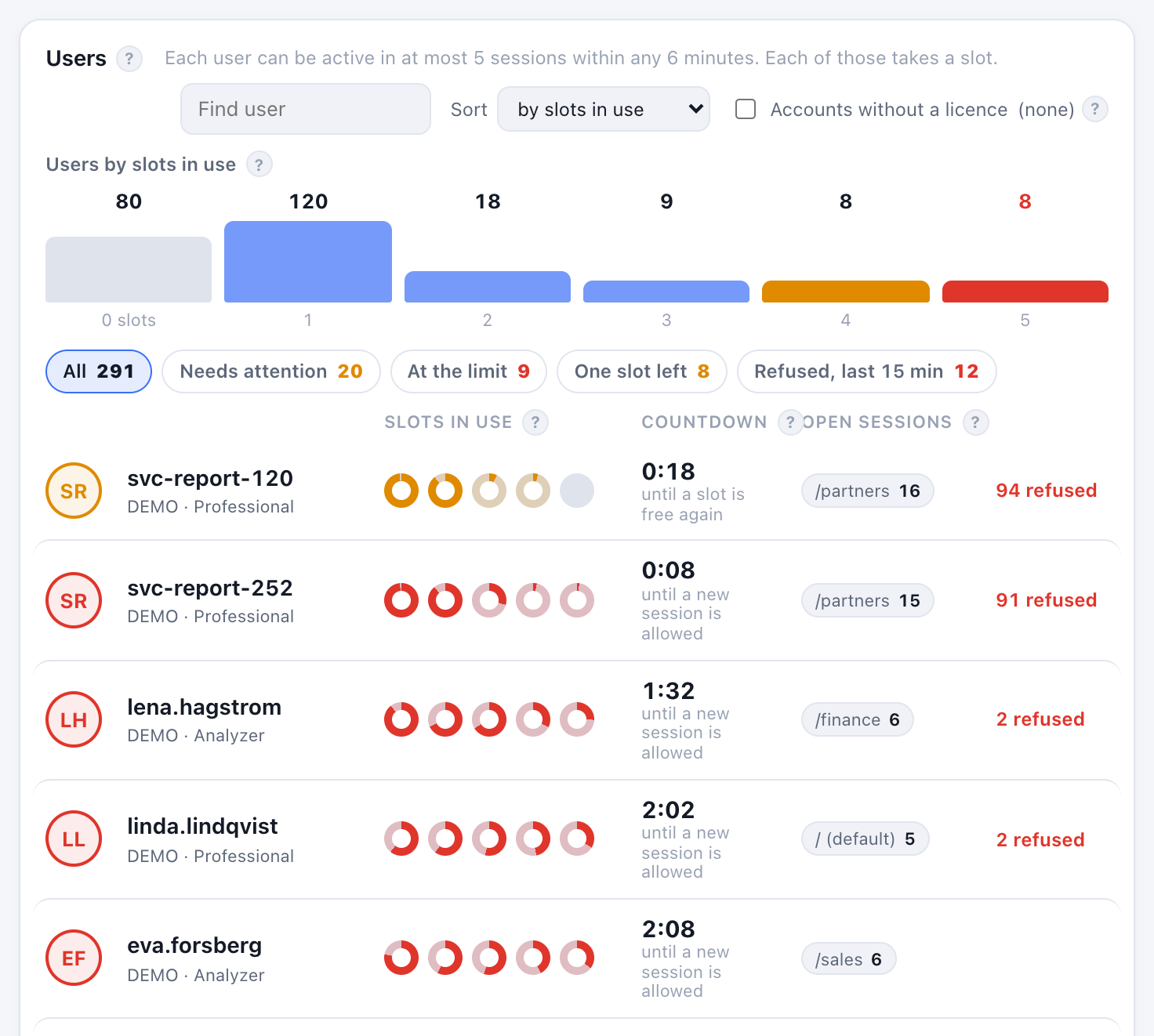
In the demo, a few scripts keep starting new sessions, so they sit near the top with over 90 refusals each. Next to them are people like lena.hagstrom and linda.lindqvist, who have opened one session too many, usually through a second browser or an incognito window.
Users by slots in use, and filters for large sites
The bar chart shows how many users hold 0, 1, 2 … 5 slots right now. On a large site it's the quickest way to see whether the limit is a problem, and for how many people. Click a bar to list just those users.
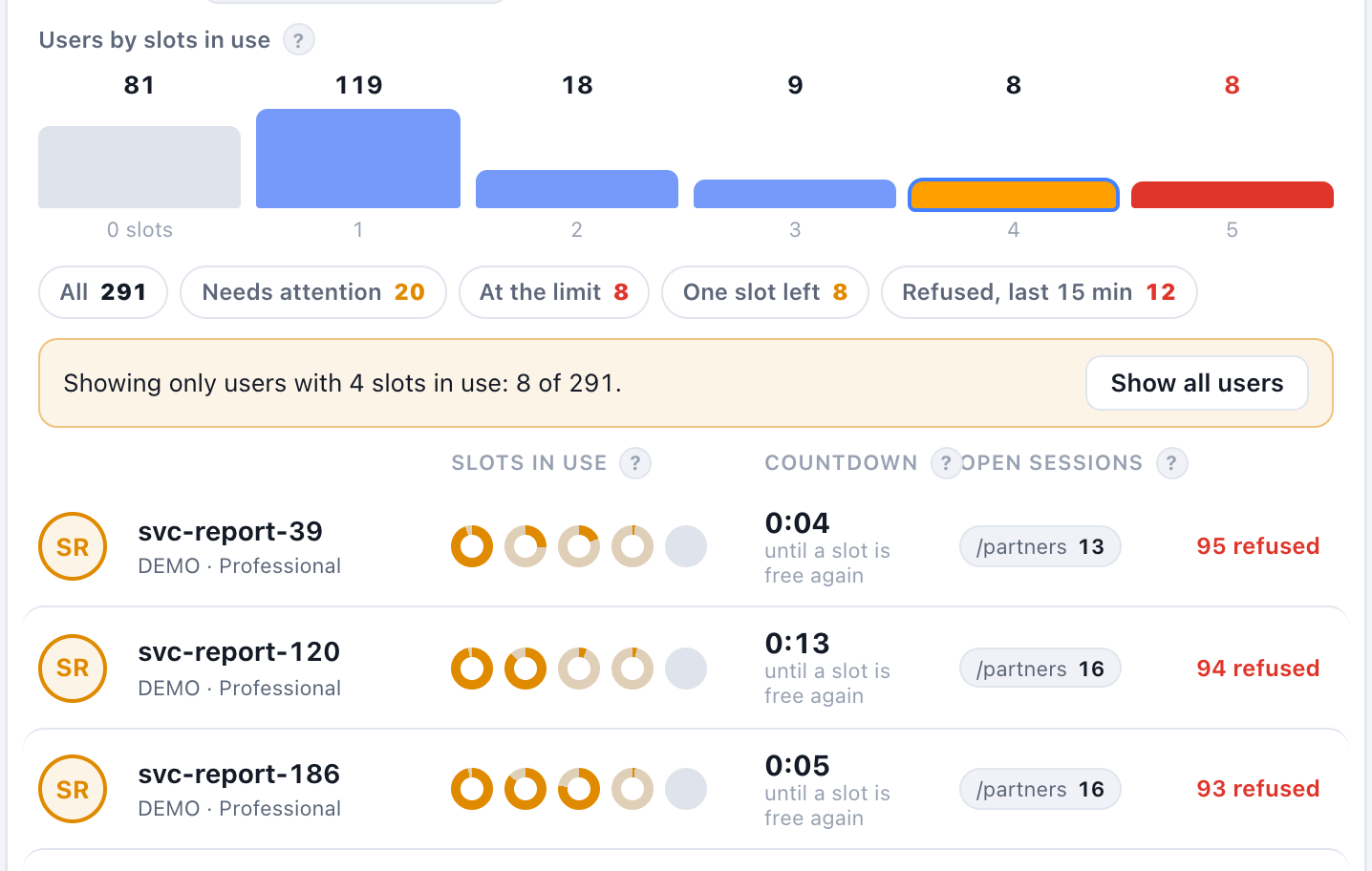
The chips below the chart filter the list to Needs attention, At the limit, One slot left or Refused, last 15 min. You can also search by name and change the sort. The page draws 50 users at a time and has been checked with 1,000 simulated users.
One user's sessions on a timeline
Click a user to see their sessions over the last half hour: when each was open, which ones hold a slot right now and until when, and which were refused.
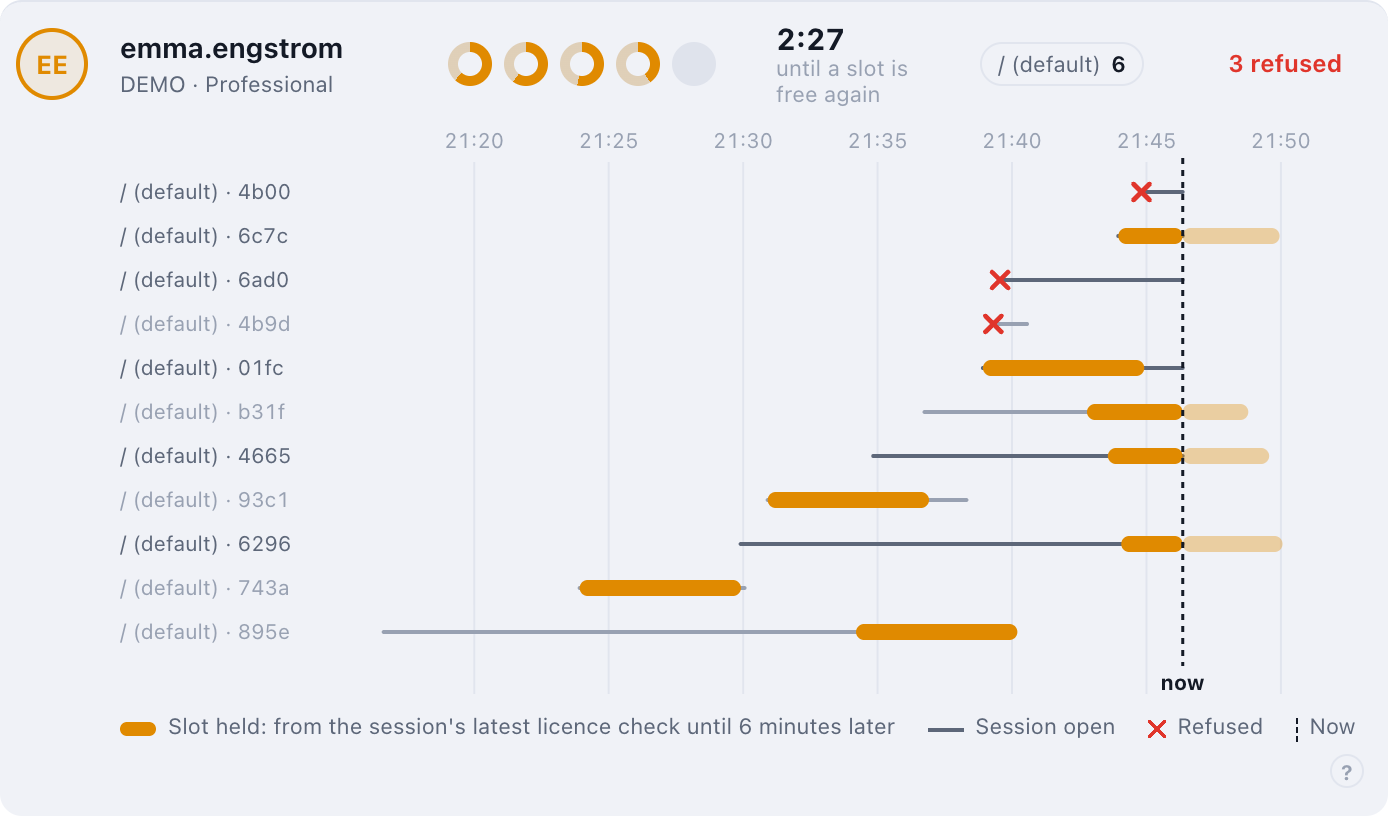
This is the view that explains a ticket after the fact. Here, new sessions arrive every few minutes, and three of them were turned away. At the bottom, a session that had been open for almost twenty minutes took a slot again the moment it was used. A user with a dozen sessions in half an hour has a browser or a script that doesn't keep its session.
Entry points and licences
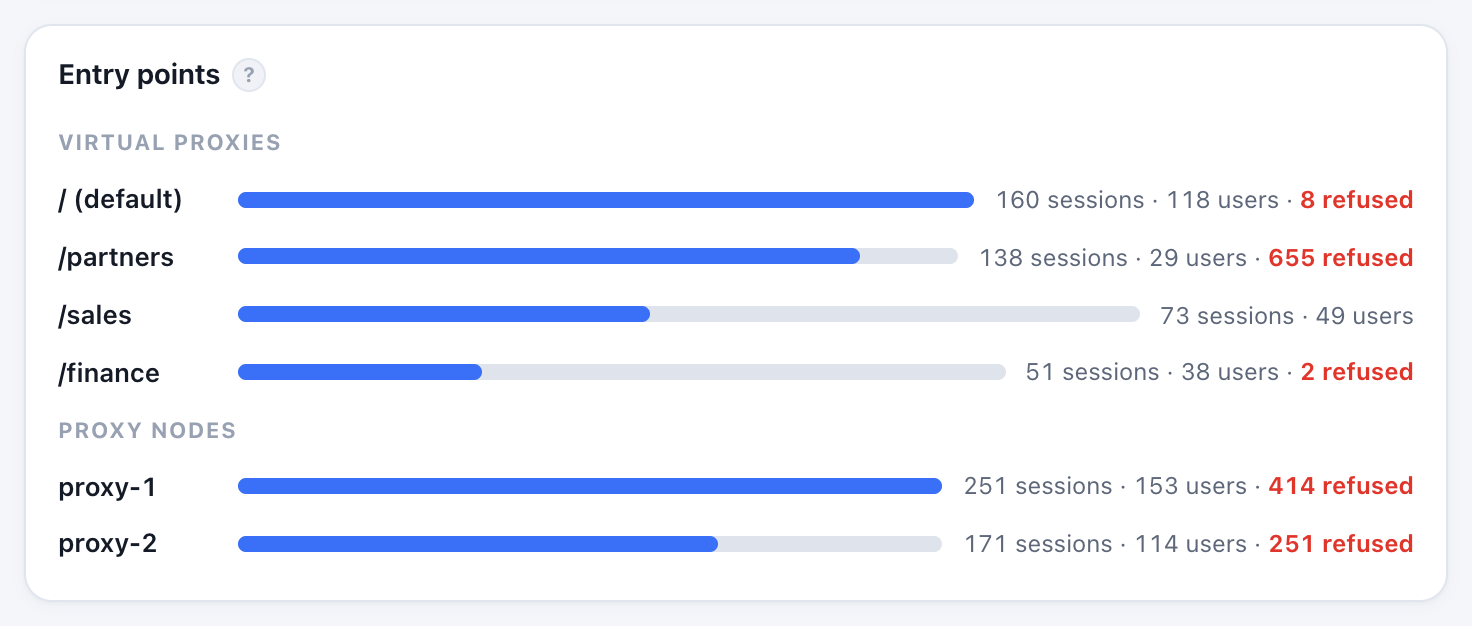
Entry points shows sessions, users and refusals per virtual proxy and per proxy server, so you can see where the pressure comes from.
Licences on the site shows the professional and analyzer allocations and analyzer time, as the QMC's licence summary does.

The live feed
The feed lists refusals and alerts as they happen: a user who has one slot left, a user who reached the limit, sessions that were refused, and users who are below the limit again as their slots run out. Tick Sign-ins to see every new session too.
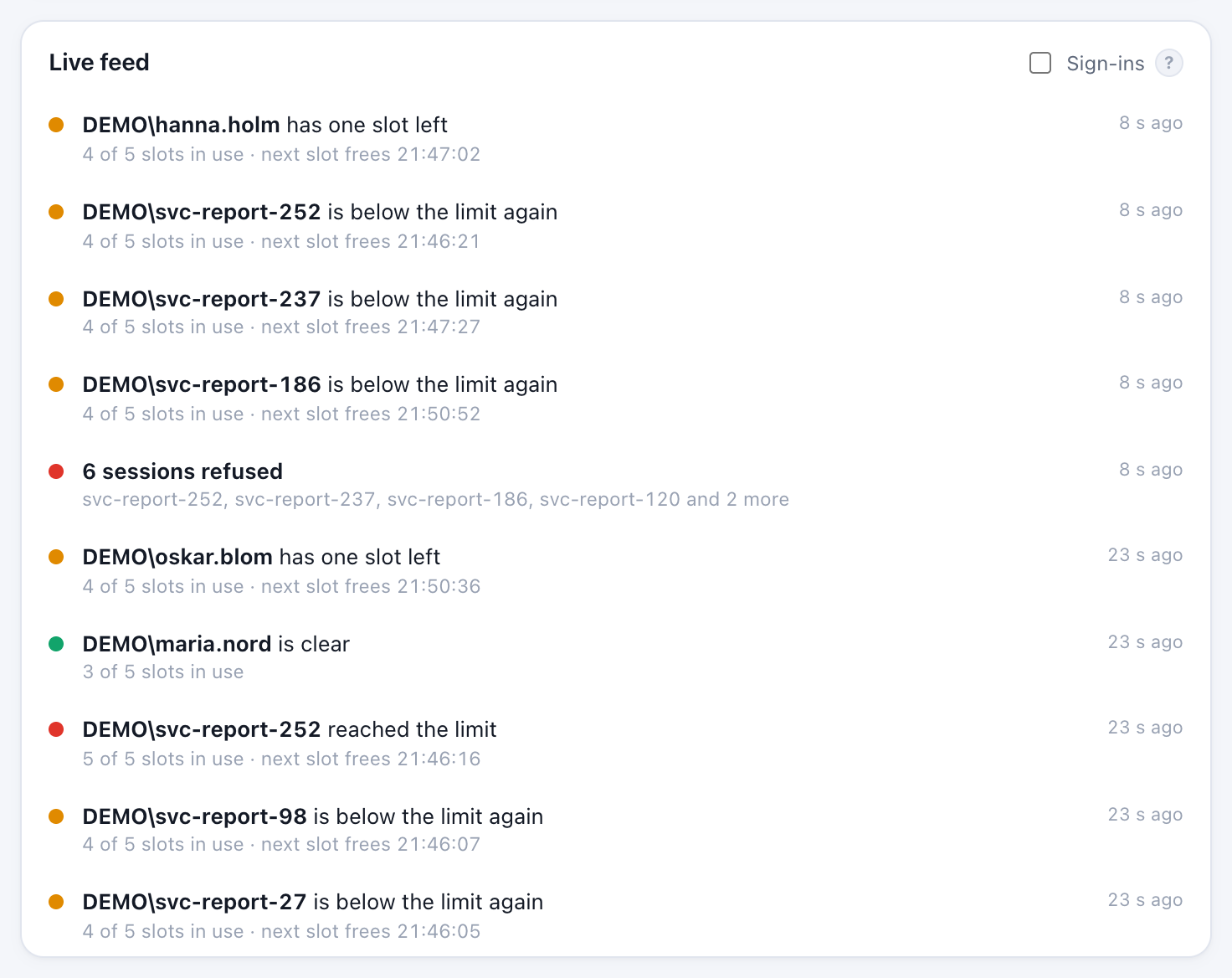
Now and then you'll see 6 of 5 slots in use. That's correct: a session that is already in is never refused, so an idle session coming back to life can take a sixth.
Desk and wall
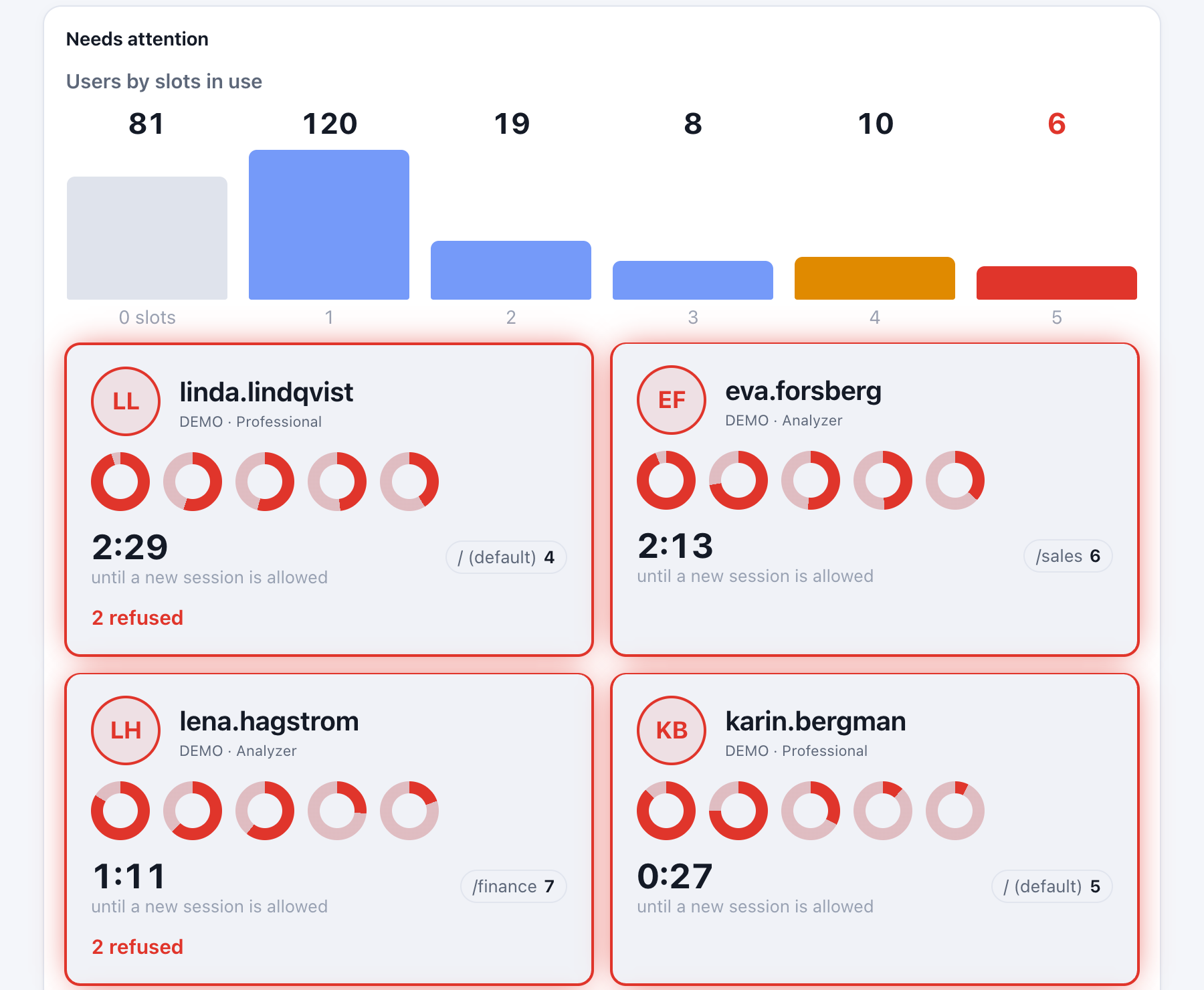
The page has two layouts, switched at the top right. Desk is everything above. Wall is for a second screen or a TV in the operations room: it shows only the users who need attention, in large tiles, and a calm All users are within limits when no one does. Both come in a light and a dark theme. The screenshots here are light, and the one at the top of the post is dark.
Help built in
Every ? on the page opens a short explanation of the part next to it, several with a diagram, like the one earlier in this post. A colleague who has never heard of the five-session limit can open the page and understand what they're looking at.
Try it in two minutes
The session monitor ships as a small utility inside the Butler SOS project, in its tools/session-monitor folder. It has no installer or release download of its own yet: you get it by getting the Butler SOS source code. Its README has everything below in more detail.
The demo makes up a site of 300 users that follows Sense's rules: most users keep one session, some open several, a few hit the limit, and a couple of scripts keep starting new sessions. You don't need a Sense server.
-
Install Node.js 24 or later, if you don't have it. Check with
node --version. -
Get the Butler SOS source code, in one of two ways:
- Download it as a ZIP and unzip it. The monitor is then in
butler-sos-master/tools/session-monitor. - Or clone it with git:
git clone https://github.com/ptarmiganlabs/butler-sos.git. The monitor is then inbutler-sos/tools/session-monitor.
- Download it as a ZIP and unzip it. The monitor is then in
-
Start the demo. In a terminal (PowerShell on Windows), go to that folder and run:
npm ci npm run demo -
Open http://127.0.0.1:3939/ in your browser. Stop the demo with Ctrl+C.
Connecting it to your own site takes about ten minutes, in the same folder:
- Export certificates from the QMC (Certificates → Export, platform-independent PEM format, with the secret key and no password).
- Copy
config.example.yamltoconfig.yamland set two things:sense.host, your central node by the name the QMC shows, andsense.certDir, the folder with the three.pemfiles. - Run
npm start, and open the same address.
Treat the exported certificates like an administrator password. The README covers each step, the ports to open, sharing the page with others, and what each error message means.
Safe to run, and where it fits
- Read-only. It reads Sense's Proxy and Repository APIs, and changes nothing.
- Nothing installed on the Sense server. It runs on any Windows, macOS or Linux machine with Node.js 24 that can reach the central node on port 4242 and the proxies on 4243. The central node itself works too.
- Nothing from the internet. Once installed, it needs no internet access, and the page loads nothing from outside.
- Private by default. The page only answers on the machine it runs on. It has no login of its own, so to share it, put it behind a reverse proxy that asks for sign-in.
It's new, so some things haven't been covered yet. It has been tested on a single-node site, and it doesn't read analyzer capacity or token-based licences.
Where Butler SOS fits
The session monitor is a live view. It shows how things stand now, and keeps no history.
For real monitoring of Qlik Sense, use Butler SOS. It gives you history over days, months and years, Grafana dashboards and alerts, for user sessions per virtual proxy, server health and much more. The plan is for the live view to become part of Butler SOS. Until then, it's a free-standing tool in the Butler SOS repository.
Try the session monitor in two minutes, no Sense server needed. It ships as a small utility inside the Butler SOS project, so you get it with the Butler SOS source code: download it as a ZIP or clone it with git. Then, with Node.js 24 or later, go to tools/session-monitor and run npm ci and npm run demo, and open http://127.0.0.1:3939/.
The README walks you through every step, including connecting it to your own site. For monitoring with history and alerts, there's Butler SOS itself.
More from Ptarmigan Labs
The session monitor is free and open source under the MIT licence, like Butler SOS. If you find it useful, please give Butler SOS a ⭐ on GitHub. It helps other Qlik Sense admins find the project, and it tells me how widely it's used.
At ptarmiganlabs.com you'll find:
- more free tools for running Qlik Sense: the Butler family, Ctrl-Q, Butler Sheet Icons, and the Onboard.qs and HelpButton.qs extensions;
- more posts like this one, about what actually goes on inside a Sense site;
- professional services, when you'd like help with monitoring, automation or getting more out of Qlik Sense.