Butler Sheet Icons 5.0: interactive mode, air-gap support, and a fancy live dashboard
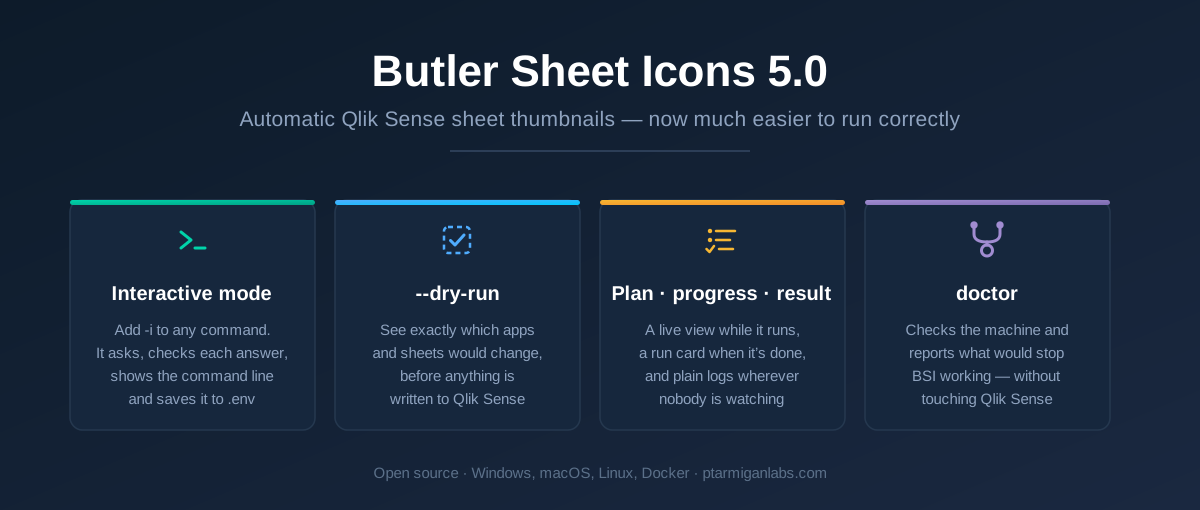
BSI 5.0 is the largest release yet: interactive wizards that build the command line for you, a --dry-run mode worth its name, a live view of runs in progress, much better support for air-gapped environments, and a doctor command that tells you why a run failed.
On this page
We've spent the past 10 years developing open source tools that make life easier for Qlik Sense admins and developers.
If you are using and get value from them - please consider supporting our past, current and future work.
It can be a ★ on GitHub, or a financial contribution via GitHub's sponsorship program. It's just a couple of clicks away.
Not sure what tools exist? Easy - check here.
Want to be the first to get the latest SenseOps news in your inbox? Sign up at link below 👇.
Either way, you guys rock! 🙌
Butler Sheet Icons 5.0 is the largest release the project has had. It adds interactive wizards, a
--dry-runmode, a live view of runs in progress, and adoctorcommand — all aimed at making the tool easier to run correctly.
Sheet thumbnails are one of those things that make a Qlik Sense app feel finished.
A stream of grey, identical sheet cards tells a user nothing; one where every card shows the actual chart layout behind it tells them where to go. The catch is that curating those thumbnails by hand, across dozens of apps, is exactly the kind of repetitive work nobody has time for.
Butler Sheet Icons ("BSI") automates this workflow.
It's a cross-platform command-line tool — Windows, macOS, Linux and Docker — that opens your apps in a real browser the way a user would, screenshots each sheet, and pushes the results back through the Qlik Sense APIs. It works with both Qlik Sense Cloud and Qlik Sense Enterprise on Windows (QSEoW), and it's open source.
Version 5.0, released today, is the biggest release in the project's history. Almost none of it is about capturing better screenshots. Nearly all of it is about the moments around a run: setting one up, watching it happen, and working out why it did something you didn't expect.
This is a major version, and there are a couple of breaking changes — both covered in Before you upgrade further down.
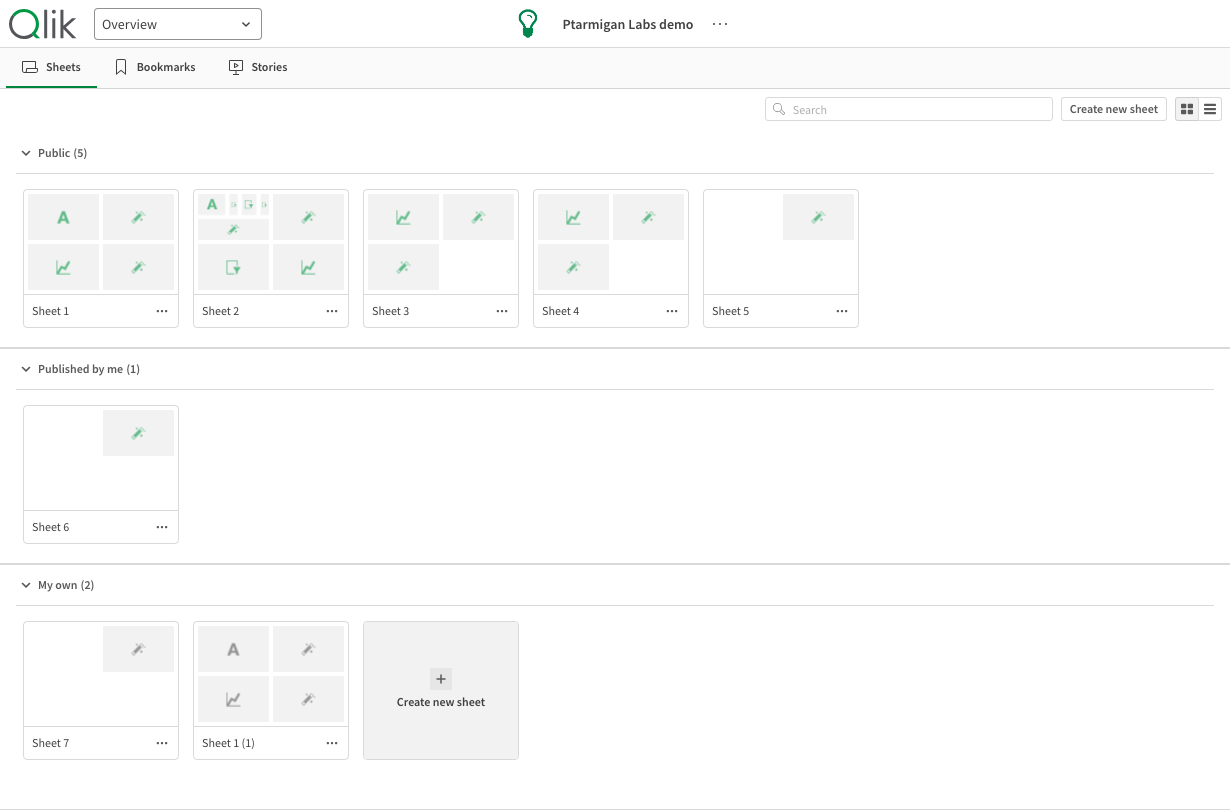
Here's the outcome BSI exists to produce. An app overview before a run, every sheet a grey placeholder:
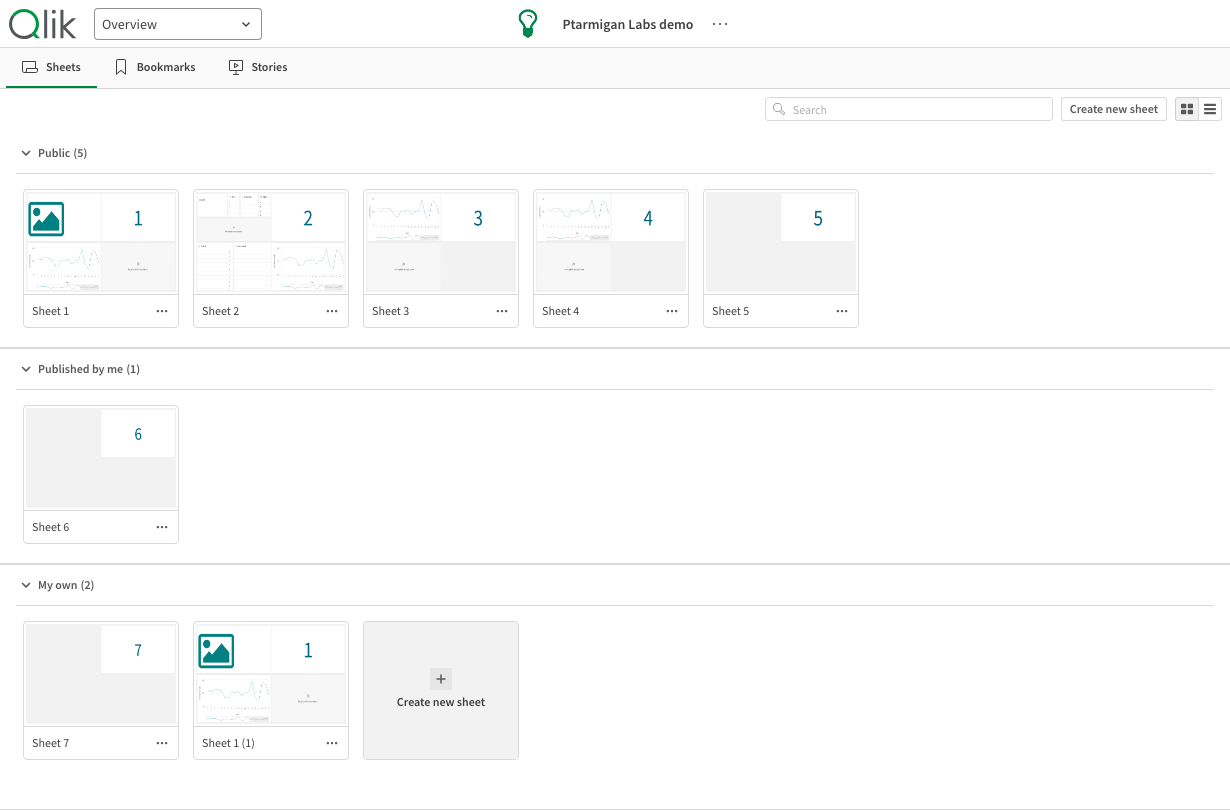
And after, each thumbnail showing the real layout of its sheet:
You don't have to assemble the command line any more
qseow create-sheet-thumbnails has 36 options.
Its Cloud counterpart has 25.
Getting a first run going has always meant reading the documentation with one hand and building a very long command line with the other — certificates, host names, ports, a virtual proxy prefix, a content library, a tag to select apps by.
In 5.0, you can just ask BSI to ask you. Add -i to the command you were already typing:
butler-sheet-icons qseow create-sheet-thumbnails -i
Or start from a menu with butler-sheet-icons interactive and pick a wizard. Either route is covered in full on the Interactive Mode documentation page.
Either way BSI asks only for what it actually needs — roughly a third of the available options — and checks each answer as you give it, against the same rule the command line uses. Type a word where a number belongs and you're told immediately, rather than after typing out the remaining thirty options.
Two details make this more than a beginner's on-ramp. First, before anything runs, the wizard shows you the command line your answers correspond to:
── Review ──────────────────────────────────────

┌──────────────────┬──────────────────────────────────────────────────┐
│ host             │ sense.example.com                                │
│ certfile         │ ./cert/client.pem                                │
│ certkeyfile      │ ./cert/client_key.pem                            │
│ apiuserdir       │ INTERNAL                                         │
│ apiuserid        │ sa_api                                           │
│ logonuserdir     │ LAB                                              │
│ logonuserid      │ goran                                            │
│ appid            │ a3e0f5d2-000a-464f-998d-33d333b175d7             │
│ contentlibrary   │ Butler sheet thumbnails                          │
│ includesheetpart │ 1                                                │
└──────────────────┴──────────────────────────────────────────────────┘

  Equivalent command:
  butler-sheet-icons qseow create-sheet-thumbnails --host sense.example.com \
    --certfile ./cert/client.pem --certkeyfile ./cert/client_key.pem \
    --apiuserdir INTERNAL --apiuserid sa_api \
    --logonuserdir LAB --logonuserid goran \
    --appid a3e0f5d2-000a-464f-998d-33d333b175d7 \
    --contentlibrary 'Butler sheet thumbnails' --includesheetpart 1

? Ready?
❯ Run it
  Start over
  Save the answers to .env
  Cancel
That's the real thing, with defaulted options omitted so you get the shortest command that does what you asked. Copy it into a scheduled task or a script and it produces the same result — the intended path from "I clicked through it once" to "it runs every night".
Second, the wizard can save your answers to a .env file, and picks up existing settings to offer back as defaults next time. It updates that file in place rather than replacing it, so your other settings survive. That makes the wizard useful on the tenth run, not just the first.
Butler Sheet Icons 5.0's interactive wizard. It asks for what it needs and checks each answer as it is given, masking the password rather than echoing it. The session ends with a review table and the exact command line those answers add up to — so you can see what would run before confirming, or save the answers to a .env file for next time.
See what a run would do before it does it
Butler Sheet Icons overwrites sheet thumbnails in place, and there's no undo. Pointing it at a production environment for the first time has always required a certain amount of faith.
Faith is still a good thing, but --dry-run takes some of the adrenaline out of that first run. --dry-run connects, resolves exactly which apps and sheets your options select, reports what it would do to each one — and changes nothing:
  PLAN  qseow create-sheet-thumbnails  (dry run)

  ● server      sense.example.com       https · engine 4747 · qrs 4242
  ● api user    INTERNAL\sa_api         cert ./cert/client.pem
  ● apps        1                       1 named by --appid
  ● sheet part  1 of 4                  sheet objects only
  ● browser     chrome (recommended)    headless · 1s per sheet
  ● uploads to  content library "Butler sheet thumbnails"

  !  sheet thumbnails would be overwritten in 1 app(s), 1 of them published

info:    #  Sheet                 Would do
info:    1  Sheet 0 (hidden)      skip  (hidden by show condition)
info:    2  Sheet 1               update
info:    3  Sheet 2               update
info:    4  Sheet 3               update
info:
info: Summary: 1 app(s), 9 sheets. 8 would be updated, 1 skipped.
info: Nothing was changed. Re-run without --dry-run to apply.
Note the per-sheet decisions, with reasons — skipped by a show condition, excluded by a tag, or due to be blurred. You see which, and why, before a single thumbnail is touched.
A dry run against a nine-sheet app. The PLAN block states what is about to change and why those apps were selected, then every sheet gets a decision with a reason attached: eight would be updated, one skipped because a show condition hides it. Nothing is written to Qlik Sense — the run ends by saying so.
Watching a run, and reading what it did
Before 5.0, a run announced its version number and then started writing. A run that correctly wrote 20 thumbnails and a run where a mistyped tag matched nothing ended identically — silently, both with exit code 0.
Now every thumbnail run opens with a PLAN block stating what's about to change and why those apps were selected, and closes with a RESULT verdict:
RESULT  ok
  apps          3 ok, 0 failed
  sheets        25 seen, 22 captured (2 blurred), 3 excluded
  thumbnails    22 sheet(s) given new thumbnails in content library "Butler sheet thumbnails"
  images kept   ./img/qseow   44 file(s), 2.6 MB
  elapsed       4m 41s
The PLAN block includes match counts, and it includes the zeroes — tag "no-thumbnail" (0 sheets) printed before the first write is the cheapest possible check-your-spelling.
While the run is in progress, an interactive terminal now gets a live view: preflight steps resolving one at a time as their real work completes, and a progress bar following the sheets of the current app. With --pagewait at its default of 5 seconds, a seven-app run is six minutes during which the only question that matters is whether it's still alive and how far in it is.
  ✓ certificates      client.pem · client_key.pem
  ✓ content library   "Butler sheet thumbnails" exists
  ✓ app list          3 apps · 1 named · 2 tagged
  ✓ browser           chrome · from cache
  ⠹ signed in
Those rows are tied to the real operations behind them, not animated over the log: browser resolves when the browser has started and answered its first command.
Crucially, BSI works out where its output is going and adapts. An interactive, colour-capable terminal (like a modern PowerShell, Windows Terminal or Bash shell) at least 72 characters wide gets the full colour contact sheet.
On the other hand, Windows Task Scheduler, cron, Docker, CI, or output redirected to a file gets the same information as plain ASCII log lines instead.
Captured and scheduled logs never contain the colour board. Nothing to configure — though BSI_OUTPUT environment variable does let you override the choice if the automatic one is ever wrong for your setup.
Interrupting a run with Ctrl-C now shuts things down cleanly, too, rather than leaving an orphaned browser process behind.
All in all - lots of small (and some large) things making your life a bit easier when it comes to Sense app thumbnails.
The same app, run for real. The plan comes first, then live per-sheet progress while the browser works through the app, then a closing verdict: eight thumbnails written in 42 seconds, one sheet excluded. On a redirected or scheduled run the same information arrives as plain log lines instead of a colour board.
When something's wrong, call the doctor
The new doctor command inspects the machine it runs on and reports what would stop Butler Sheet Icons working, along with the steps that fix each problem:
butler-sheet-icons doctor
It's the general form of browser check: use browser check when you know the problem is the browser, doctor when you don't yet have a theory.
Three deliberate limits are worth knowing. doctor never contacts Qlik Sense, so it's safe on a production server at any time of day. It makes no network requests unless you pass --allow-network — on a server without internet access such a check wouldn't fail quickly, it would hang — so those checks are skipped and the report says so. And it doesn't diagnose Qlik Sense itself: whether BSI can reach your Sense server is in scope; why that Sense installation is unhealthy is a question for the QMC.
Alongside it, error messages across the tool now name the underlying cause rather than stopping at a generic failure, stack traces no longer appear at the default log level, and secrets are redacted from logs. A thumbnail captured while a sheet was still loading — previously saved silently, leaving you with a picture of a spinner — is now flagged.
The doctor command checks the machine and reports what would stop a run — without contacting Qlik Sense, so it is safe to run on a production server at any time. Here it finds no usable browser in the cache, says so plainly, and names three concrete ways to fix it, each with a command you can copy.
Also new in 5.0
qseow remove-sheet-icons— clears all thumbnails in a client-managed Sense app, with its own dry run and run report- Several apps in one run —
--appidcan now be given more than once, or simply specify several app IDs after each other - Before-and-after app overview screenshots — every run captures the overview twice, so you can see what changed
--browser-executable-path— point BSI at a Chrome or MS Edge you already have installed, instead of downloading one--browser-cache-dir— choose where browsers are cachedBSI_LOG_TIMESTAMPS— drop the timestamp prefix from console output- Signed Windows binaries — with a new certificate
- One bad sheet no longer discards the whole app on client-managed Sense.
Before you upgrade
Firefox support has been removed. Chrome (and Chrome-like browsers such as Edge) is now the only supported browser. In practice very few setups ran BSI on Firefox, so this is unlikely to affect you — and if it does, the fix is to switch to Chrome. --browser firefox is now rejected at argument parsing, including when supplied through the BSI_BROWSER_* environment variables, and the Firefox release channels and channel-prefixed build ids are no longer valid --browser-version values. A Firefox left in the cache by an earlier release is cleaned up by browser uninstall-all.
overview-1.png is now overview-before.png. Because a run now captures the app overview both before and after, a positional filename no longer says which state a picture shows. Only scripts that read that file by name need updating.
Everything else is additive. Existing command lines keep working.
Getting Butler Sheet Icons 5.0
Butler Sheet Icons is free and open source. Standalone binaries for Windows, macOS and Linux, plus Docker images, are available from GitHub:
New to it? Download the binary for your platform and run butler-sheet-icons interactive — no documentation needed to get a first run going.
And if Butler Sheet Icons is useful to your team, consider giving it a ⭐ on GitHub. It helps surface the project to others in the Qlik community who might benefit from it.